Prodigies Compose: The Complete Guide
Prodigies Compose is a music writer for kids, families and music teachers. Every note is a colored bell, so a child who knows red is C can write a song, hear it ring on real bell sounds, play it with a band, print it and share it with one link. It runs in a web browser at compose.prodigies.com and as the Prodigies Compose & Perform app on iPad and iPhone.
| Made by | Mr. Rob and the Prodigies team (Young Music LLC) |
| Runs on | Any modern web browser, plus the app on iPad and iPhone |
| Website | compose.prodigies.com |
| App | Prodigies Compose & Perform on the App Store |
| First App Store release | Version 1.0.1, October 22, 2026 |
| Latest version (November 23, 2026) | 1.1.2 on the website, 1.1.1 in the App Store |
| Instruments | Bells (8 or 25), piano, marimba and recorder |
| Ways to play along | Real bells, tapping the screen, singing or a piano, with the band behind you |
| Time signatures | 4/4, 2/4, 3/4 and 6/8 |
| Files | Share link, print, SVG, JSON and MusicXML in and out |
History
Compose started life as the composer inside Prodigies Pages, the PK-5 curriculum site, and joined the Prodigies PK-5 app in July 2026 as the Compose Tool. The Compose Library at compose.prodigies.com began the same month as a place to publish, browse and remix what people wrote. It took over the editor in mid-August and gained chord sheets on August 20.
The iPad app began on August 18, 2026, with one rule that still holds: the app, the website and the PK-5 tool share the same music engine, so a feature that reaches the website reaches the app with its next release. The first test build went out on September 2, version 1.0 went to Apple in the fall and 1.0.1 reached the App Store on October 22, 2026. Since then a new version has landed every few days.
Releases
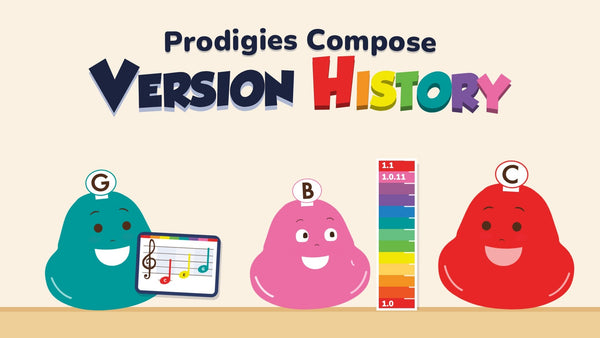
Every version of Compose has a bell color: the last number picks the bell, from the red C bell for 1.0 up to the pink B bell for 1.0.11, and 1.1 starts again on C. The Compose Version History has the details, pictures and things to try for each one.
| Version | Where and when | Highlights |
|---|---|---|
| 1.1.2 | Website, November 20, 2026 | Chord symbols drawn like the Prodigies art, 17 more chords and the opening bells on the website |
| 1.1.1 | App Store and website, November 18, 2026 | Loop on the beat, real tempos in Perform and a bell tray that slides between 8 and 25 bells |
| 1.1 | Website, November 2026 | A two-row toolbar with Redo, Count-in, Dot and Triplet, and one color for each kind of button |
| 1.0.11 | Website, November 13, 2026 | The band in Perform plays real instruments and listens to the melody |
| 1.0.10 | Website, November 12, 2026 | A row of note tools, typing your music on the keyboard and Noodle |
| 1.0.9 | Website, November 2026 | Songs up to 64 measures, a second verse of lyrics and a shelf for your saved songs |
| 1.0.8 | App Store with 1.1.1 | The opening bells ring from C up to high C |
| 1.0.7 | App Store, November 5, 2026 | 2/4 time, Compose links that open the app and a metronome |
| 1.0.6 | App Store, November 3, 2026 | MusicXML in and out, bells that light up and a band that swings |
| 1.0.5 | App Store, November 1, 2026 | Tap a bell, then tap where it goes, and a real toolbar on iPhone |
| 1.0.4 | App Store, October 29, 2026 | The bells-to-COMPOSE opening and Add 2 measures |
| 1.0.3 | App Store, October 25, 2026 | Drag a note to the trash can, update your own songs and a new Home (with 1.0.2) |
| 1.0.1 | App Store, October 22, 2026 | Compose comes to iPad and iPhone |
| 1.0 | Sent to Apple in fall 2026 | Write it, hear it, share it |
How it works
- Open Compose. Click Compose on the home page or + New song in the top bar. You get a staff, a row of colored bells and a Play button. Nothing to install.
- Write notes. Drag a bell onto the staff, or tap a bell and then tap the beat where it goes. You can also type: pick a length with a number key, then press a letter from A to G.
- Pick the rhythm. The toolbar has sixteenth, eighth, quarter, half and whole notes, a Dot button, Triplet and rests. Ties work across the barline and notes can start off the beat. Write past the last measure and a new one is added for you.
- Make it yours. Add lyrics under the notes, chords above them, dynamics, hand signs and note names. Change the clef, key or time signature at any point.
- Hear it. Press Play and the notes light up as the bells ring. Turn on Loop, Count-in or the metronome, and set the speed with the tempo.
- Share it. Copy Share Link gives one link that opens your exact song for anyone, no account needed. You can also print it, download it or publish it to the library.

The editor
The top bar
Play, Stop, Loop, the metronome, Count-in, Undo and Redo, Perform, a button to connect a MIDI keyboard and Save. The tempo sits here too, so you always see how fast your song plays. In 6/8 it counts dotted quarter notes.
The note toolbar
Under the top bar is a row of note tools: Select, Eraser and Noodle; the five note lengths, Dot, Triplet and Rest; Flat, Natural, Sharp and Respell (a note's other name, like F♯ and G♭); Tie and Shout; then Dynamics, Clef, Key, Time, Tempo, Subdivisions, Lyrics, Chords, View and Zoom. Simple tools shows a shorter row for young composers, and Full tools shows everything.
The bell tray
The bells sit in a tray along the bottom. Slide between 8 bells (C to high C) and 25 bells (every sharp and flat, from low G to high G). The bells a song uses glow in their color. Shh is the rest bell: drag it onto the staff for a rest.
The Song menu
Save Song, My Songs, Copy Share Link, Print, Download, Open MusicXML, Undo and Clear All Notes.
Views and zoom
View lays a song out four ways: scroll down, scroll right, or Letter-size pages down or to the right. Pick 2 or 4 measures a line, and zoom in or out.

How Compose writes music
Compose aims for music that reads like a printed songbook, sized for small eyes.
Spacing and beams
Notes are spaced the way printed music is, so short notes get room and are easier to read. Eighth and sixteenth notes are beamed in groups and single ones get proper flags. In 6/8, eighth notes are beamed in threes and dotted quarters get the beat.


Triplets, ties and rests
Triplet turns one note into three quick ones, and triplets can hold rests. Ties work across the barline, and notes can start off the beat. A note tied from the one before it is see-through, so it reads as hold, not play again. Rests join up the way they do in print, and a rest can be picked like a note and given a new length.
Long notes and hand signs
A long note shows one hand sign with a bar behind it for as long as it lasts, like in Prodigies videos and books.

Changing the time signature
Change the time signature and every note keeps its length. Notes that cross a new barline are tied, and one Undo puts it all back.
Small touches
Rests, clefs and sharps and flats are Prodigies brown, and the quarter rest is drawn big. Chords can stack up to eight notes. Typing a scale climbs by itself, so C D E F G A B C ends on high C. Subdivisions can switch eighth and sixteenth notes off for little composers.
Settings
The gear opens Music Settings, with three tabs for a song and its own settings for a chord sheet.

- Notation
- Instrument (bells, piano, marimba or recorder), staff (treble, bass or grand), measures per line, the 8-note scale or chromatic, sharps or flats for note names, transpose, key signature on or off, chords on or off, and lyrics on, two verses or off.
- Appearance
- Bells or the original keyboard layout; note style (ChromaNotes colors, black and white, or ABC); note names and finger numbers on or off; lyric style and font; hand signs; solfege as fixed do, movable do or "C is always Do"; and classic or bell noteheads.
- Playback
- Tempo, time signature, number of measures, a pickup of 1 to 3 beats, Count-in of 1 or 2 bars, swing (light, triplet or hard), Follow so the music scrolls with the sound, and a backdrop picture for Perform: a concert hall, a field, a lake, the woods or a city.
- Chord sheets
- Section labels, lyric size, chord symbols as triangles or ukulele and guitar diagrams, flats or sharps and chord size.
Bells and instruments
Compose is built around Prodigies deskbells. Every note wears its ChromaNotes color, the same colors on Prodigies bells, Boomwhackers and the piano stickers: red C, orange D, yellow E, green F, teal G, purple A, pink B and red high C. The 25-bell set adds the sharps and flats in their own colors and runs from low G to high G.

The melody can also play on piano, marimba or recorder. Recorder keeps to the recorder's range and can show fingering cards.
Chords
Turn chords on and they sit above the music. In Perform the band plays them every bar, and swing songs swing. Half-diminished chords work too: the band plays them and the chord cards show them.
A chord sheet is its own kind of document: lyrics with colored chords above the words, for ukulele, guitar or piano. Its key menu transposes the whole sheet, and its settings show chords as triangles or as ukulele and guitar diagrams.

Chord library
Every chord Compose can write, drawn the way Compose draws it. Pick a root bell, then tap a chord to hear it and open its card. Three-note chords are triangles and four-note chords are squares, with a colored stripe for each note.
Compose writes major, minor, 7, m7, maj7, diminished, augmented, sus2, sus4, 6, m6 and half-diminished chords, plus 17 more from MuseScore's chord list, on any of the 12 roots.
To add a chord, click above a beat. The picker shows the chords of your song's key, and the box under it takes any chord on this list, like F♯m7 or B♭sus4.
Progression library
The chord patterns songs lean on most, in any key. Press Play to hear one on the bells, and tap a chord to open its card.
I V vi IV, I IV V I, I vi IV V, vi IV I V, ii7 V7 Imaj7, I ♭VII IV I, Pachelbel's Canon, the 12-bar blues and three minor progressions.
Perform
Perform is a stage for playing a song along with a band. The music scrolls past a play line while a band plays behind you. Open it from any song page, from the editor or from the Perform setlist.
The start screen
Each song opens on a start screen with its title, the bells it needs and a big Play button. Below that you pick how you play, how fast and which band.

Ways to play
- My bells
- Ring your real bells. Compose listens through the microphone, hears which bell rang and counts each note played on time. The first time, it asks you to ring each bell once so it learns what your bells sound like in your room.
- Tap the bells
- Play on the screen. A tap counts just like a bell it hears.
- Just listen
- The bells play the tune with the band, so kids can watch and sing along.
- Sing
- Sing the tune into the microphone.
- Piano
- Play the tune on a real piano or keyboard. Compose learns its sound first, starting on middle C.
Notes played right fire off a burst on the stage and build a streak. At the end of the song you get a score and up to three stars. The ways that listen need the microphone, so allow it when the browser asks.
Speed and Loop
Play slower or faster than the song's own tempo. The speed buttons show the real tempo, like 90 BPM. Loop plays the song again and again and comes straight back in on the beat.
The band
The Classic band is a recorded drum kit, an upright bass and a grand piano. The Chill band is lofi, with a Wurlitzer electric piano and long held chords. The band plays the whole song, not a loop: everyone starts together, it swells through each phrase and it ends on the tune's last note. It listens to the melody, plays quieter under a busy part, fills only where the tune rests, and the piano answers the end of each phrase.

Tune the band
Tune the band gives Drums, Bass and Piano their own pad. Drag across a pad to make that player softer or louder and simpler or busier. For the whole band, pick a Pocket groove (tight and funky) or Loose (lazy and laid back), then set how human it sounds, how often and how big the fills are, and whether it plays behind or ahead of the beat. The Chill band adds Plain or Color chords, and Color makes them jazzier. Press Listen to hear four bars before you start.

Backdrops
Settings picks the picture behind the stage: a concert hall, a field, a lake, the woods or a city.
Puzzles, Noodle and the MIDI keyboard
- Puzzles
- A song with its notes scrambled off the staff. Put them back by ear. There are 60 puzzles in sets like Holiday, Classic, Screen, Minor and the songbooks, each with an Easy and a Hard level.

- Noodle
- Play the bells without writing anything, so kids can hunt for a tune first. Press N, then the letter keys or the numbers 1 to 8 ring the bells.
- MIDI keyboard
- Plug in a MIDI keyboard and Compose writes the notes you play. This works in Chrome and Edge on a computer, and How it Works shows the steps.
Keyboard shortcuts
On Windows and Chromebooks, use Ctrl where this says Cmd. The library keeps a printable shortcuts page too.
| Keys | What they do |
|---|---|
| A to G | Write that note |
| Shift + letter | Write its sharp (25 bells) |
| Z / X | Octave down or up |
| 3 4 5 6 7 | Sixteenth, eighth, quarter, half or whole note |
| . | Dot or undot |
| 0 | Turn the selected note into a rest |
| ← / → | Step to the note before or after |
| ↑ / ↓ | Move the note up or down |
| Shift + ↑ / ↓ | Move it an octave |
| Alt + ↑ / ↓ | Move it one line or space |
| J | Swap the spelling (F♯ and G♭) |
| T | Tie to the next note |
| H | Shout (HEY!) |
| Delete | Delete the note |
| Cmd + C / V / D | Copy, paste or duplicate a selection |
| Space | Play or stop |
| Cmd + Z | Undo |
| Shift + Cmd + Z | Redo |
| N | Noodle on or off |
| Esc | Let go of a selection, or stop noodling |
Try it: press 5 for quarter notes, type C D E C, then press Space.
The library
The Compose Library holds hundreds of songs written by the Prodigies team, teachers and families, and it grows every week. Anyone can browse and play it.
- Browse
- Search by title, composer or lyrics. Filter by instrument, level (1 to 5), notes (C major or chromatic), rhythm, time signature and key, or only songs that fit your 8 bells. Switch between Cards and List.
- Song pages
- Every song page shows the full colorful score. Play it on the page, change its key, open it in Perform, or Remix it in the editor to make it your own. Favorite it, rate it, add it to a collection, print it or download it.
- Collections
- Songs grouped by season and theme, like Christmas, Hanukkah, Video Games and the My First Songbook volumes, plus personal collections people make for themselves. Collections are the setlists Perform draws from.
- Publishing
- Press Publish in the editor, add a title and an optional description, confirm it is your own work with no student names, and choose public, unlisted or private.
- Community guidelines
- Accounts are for adults: teachers and parents publish, and students never need an account to play or print. Every word stays classroom-safe, songs never include children's personal information and every song page has a Report button. Read the full Community Guidelines.
Seasonal songs and video game themes are some of the most played. For the Zelda set, read 12 Zelda Songs Your Kids Can Play in Color.
Files and other music apps
- Share link
- Copy Share Link gives one link that opens your exact song, for anyone, with no account.
- Print a song. The Letter page view shows how it will look on paper.
- MusicXML
- Save a song as MusicXML and open it in MuseScore, Finale, Sibelius or Dorico, or open their MusicXML files in Compose. Compressed .mxl files work too, the kind Finale, Dorico and MuseScore save by default. A second verse of lyrics travels both ways, and a song in 2/4 opens as 2/4.
- SVG and JSON
- Download the score as a picture (SVG) or the song itself as a file (JSON).
The app
Prodigies Compose & Perform runs the same editor as the website on iPad and iPhone. Everything works offline, and your songs save on your device. My compositions is a shelf of your saved songs: tap one to open it, and Save updates that song. Compose links open right in the app, from Messages, Mail or a class page, and Compose always starts a blank song, so a shared classroom iPad never opens the last kid's work. The iPhone gets its own toolbar along the bottom. When the app opens, eight bells drop onto the staff, ring from C up to high C and spell COMPOSE. They stay quiet when the iPhone is on silent.
For teachers
- No student accounts. Students never need an account to play or print. Teachers and parents publish.
- Start small. Simple tools shows a short toolbar, the 8 bells keep to C up to high C and Subdivisions can switch off eighth and sixteenth notes.
- Shared iPads. In the app, Compose always starts a blank song, so the next kid never opens the last one's work.
- Solfege your way. Show hand signs and note names, and pick fixed do, movable do or "C is always Do".
- Real bells in Perform. With My bells, the class rings real bells and Compose hears them. No bells? Tap the bells on the screen instead.
- Puzzles for ear training. 60 songs with their notes scrambled, each with an Easy and a Hard level.
- Send it anywhere. A share link opens the exact song for anyone, and Compose links open right in the app.
What it does not do
Compose keeps the page readable for a six-year-old on purpose. It is not a full notation program: one melody staff plus a left-hand staff, no key changes partway through a song, no repeats or codas and two verses of lyrics at most. For anything bigger, download MusicXML and keep going in MuseScore, Finale, Sibelius or Dorico.
Questions
- Do students need an account?
- No. Students never need an account to play or print. Accounts are for adults: teachers and parents publish to the library.
- Does it work without internet?
- The app does. Everything in it works offline, and songs save on the device.
- My MIDI keyboard does nothing.
- MIDI works in Chrome and Edge on a computer. Plug the keyboard in, click the keyboard button and allow it if the browser asks.
- Perform can't hear my bells.
- My bells, Sing and Piano use the microphone. If the browser blocked it, allow the microphone for compose.prodigies.com and try again.
- The opening bells in the app are silent.
- They stay quiet when the iPhone is on silent.
- How do I get my song into MuseScore or Finale?
- Save it as MusicXML from the Song menu, then open that file in the other program.
Glossary
- ChromaNotes
-
 The note colors Prodigies uses everywhere: red C, orange D, yellow E, green F, teal G, purple A, pink B.
- Deskbells
- The tuned bells kids ring, one per note. Compose's bells sound like them.
- Hand signs
-
 Curwen hand signs, one shape for each solfege note, shown under the music.
- Solfege
- Do Re Mi Fa Sol La Ti Do. With movable do, Do follows the key; with fixed do, C is always Do.
- Shout
- An X note with no pitch, for a "HEY!" in the song.
- Noodle
- Playing the bells without writing anything.
- Perform
- Playing along with a song while a band plays behind it.
- Bell Ears
-
 The part of Perform that listens through the microphone and hears which real bell rang.
- Hold bar
-
 The colored bar behind a long note that shows how long to hold it.
- Tune the band
- The Perform panel that sets how each player in the band sounds.
- Remix
- Opening someone's published song in the editor to make your own version.
- Chord sheet
- Lyrics with colored chords above the words.
- MusicXML
- The file format notation programs use to swap songs. Compose reads and writes it.
- Share link
- One link that opens an exact song, no account needed.
See also
- Prodigies Compose Version History
- How to use Compose on compose.prodigies.com
- Compose keyboard shortcuts
- 12 Zelda Songs Your Kids Can Play in Color
Questions or ideas? Tell us with the Feedback button in Compose, or at id.prodigies.com/feedback.
Start your child’s musical journey
Join 10,000+ families learning music the colorful, hands-on Prodigies way.
Explore Prodigies